


The linear pendulum
The input statement for
y will
automatically give the right number of rows for
y
so long as the input is in the form of a column vector. Therefore, e.g.
to enter
 the column vector
[ 0.5; 0] should be input at the prompt.
Use your modified Runge-Kutta routine to solve equation (3),
for
 in the range from 0 to 20.
with initial conditions
in the range from 0 to 20.
with initial conditions
 ,
,
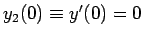 .
.
Use
 as the step-size here and throughout.

 Check that your code is working correctly by calculating the
linearized solution
Check that your code is working correctly by calculating the
linearized solution
ylinear
for this special case (see (4)) and plotting on the same axes
as the numerical solution, using red dashes (see
plotting
).

 Give the maximum value of
y(1,:)-ylinear
for the case where the maximum time-value is
 and
and
 .
.
 Copy the MATLAB function pendplot.m
to your filespace.
Copy the MATLAB function pendplot.m
to your filespace.
Add a command to call pendplot.m
just after the plotting in rk2_many.m.
Re-run the case
,
and you
will now be able to see the pendulum motion.
The nonlinear pendulum
We can now move on to solution of the full nonlinear pendulum problem (2). You will have to modify rhs2.m to include the appropriate right hand sides.
Re-run rk2_many.m for the nonlinear case, but with the same initial
conditions used above i.e.
 and
and
 .
.
What differences do you see?
Modify your analytical solution to the linearized problem, i.e.
 so
that any initial amplitude can be used.
Then re-run the program with
so
that any initial amplitude can be used.
Then re-run the program with
 and then
 ,
but keeping
,
but keeping
 and describe how the motion changes.
Now run the code with
 . What's happening?
 Explain the results for the
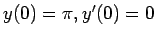 case.
case.
In all the previous examples the pendulum was started from an initial condition
corresponding to zero velocity
(
 ). Now again consider the problem where the initial condition is
 , corresponding to the case where the (rigid) pendulum is inverted
on its end, but start with a non-zero velocity
, corresponding to the case where the (rigid) pendulum is inverted
on its end, but start with a non-zero velocity
 and take the calculation out to time
 . From the MATLAB plot
of the resulting solution, describe the motion.
. From the MATLAB plot
of the resulting solution, describe the motion.